1. Open Kolbo and choose one thing to make
Your first project: an image ad for a real product or service. Then reuse your product or visual style in a series, and turn an image into a short video. Characters are one option, not a requirement. You need a browser, a Kolbo account and a simple idea. No coding or design experience is required.
Kolbo brings image, video, music and other AI tools into one workspace. Think of Kolbo as your desk and the models as the different tools on it. You can try several models without managing a separate subscription to every service. Whether that saves money depends on what you generate and how often.
Open Kolbo through MAX AIChoose Sign In and use the sign-in method offered, such as Google. Once you are in, find your credit balance. Credits are the units Kolbo charges for generations; the number on the Generate button is the cost of that specific attempt. Check your account’s current allowance before starting.
The screenshots below were captured in the English interface on October 3, 2026. On a small screen, open a screenshot to inspect its controls.
FROM VISUAL TO CAMPAIGN
Give the image a job.
A good image catches the eye. An ad also needs a message and a next step. Here is our café visual placed into a simple website ad.
Image: generated in Kolbo.
Headline and layout: added separately for this guide, so the wording stays exact.
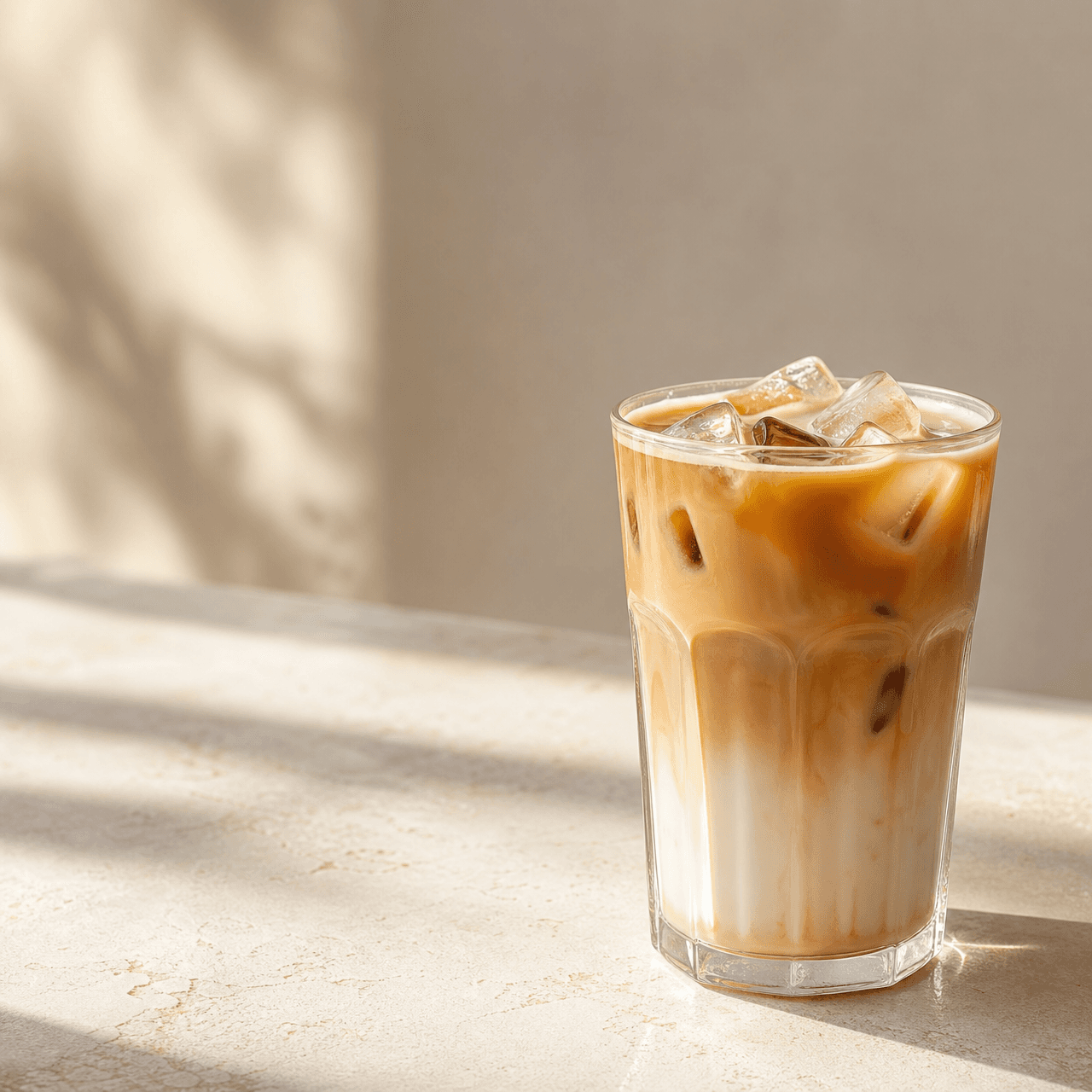
On ice.
Campaign images, website banners and social posts. Start with a clear product photo.
02 / VIDEOTurn a still into a storyA short reveal or a gentle camera move. Start with an image you already like.
03 / SERIESKeep a recognizable lookReuse your product, presenter or visual style across several scenes.
AN EXAMPLE YOU CAN FOLLOW
A café campaign.
One image to start.
The brief: make an iced latte look inviting, with warm morning light and a simple background.
What works: one clear subject, a restrained palette and no competing objects.
What to improve: for an ad with a headline, ask for more empty space and add your verified offer in an editor.
The next step: use this image as the starting frame for a slow camera move. You will see it in the video controls below.
Write a two-sentence brief. For example: “I run a neighborhood café. I want a visual for our iced latte: warm morning light, a clean counter and room for a headline.” If you sell a physical product, attach a real photo and check that the output represents it accurately.
Ready to continue?
- You are signed in and can see your credit balance.
- You have chosen one product, service or offer.
- You know what you want the viewer to notice first.
Make your first image ad with Kobi
Kobi is Kolbo’s built-in assistant. It helps turn a plain-language brief into a detailed prompt: the instruction the image model uses. You do not need to install a skill to follow this exercise.
Open Images → Create Image, then select the Kobi avatar. In the chat panel, use Ask to work on the idea before generating. Tell Kobi what you sell, who it is for, and the one thing you want the viewer to notice.
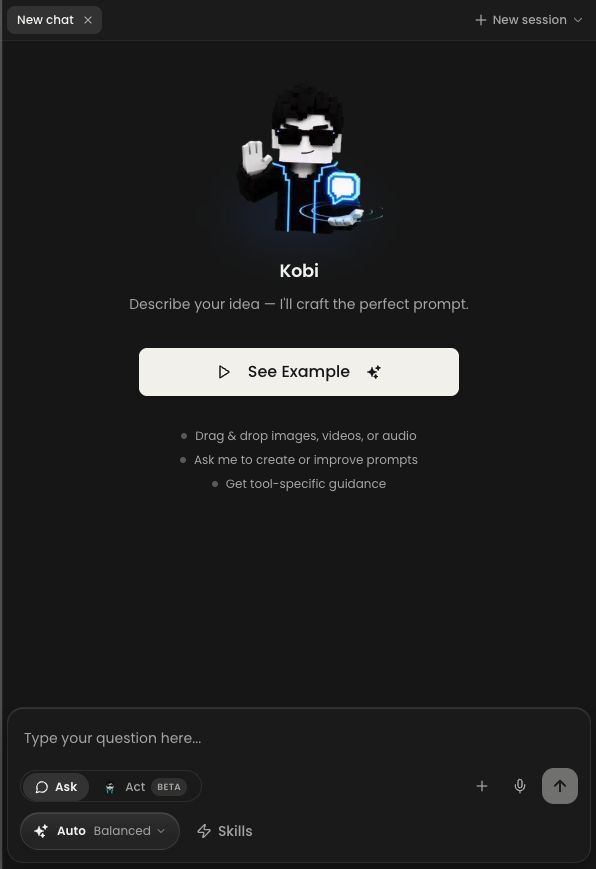 Open full-size ↗
Paste this into Kobi’s chat, replacing the brackets:
Help me plan an image ad for my business and write a ready-to-use image prompt. Here is my business and the offer I want to promote: [add a short description, link or screenshot]. Ask me for any missing details. Please reply in English and write all visible ad copy in English. For this first version, do not include a person.
Answer Kobi’s questions about your business and offer. It should help you produce an idea and a ready-to-use image prompt. Copy that prompt into the image tool’s main prompt box. Kobi’s chat and the image-generation box are two separate places.
Choose a model and check the cost. Use the model picker at the bottom left. For a first experiment, keep one output and a modest resolution. The number beside Generate is the cost for your current settings; recheck it whenever you change the model.
 Open full-size ↗
See the real model picker
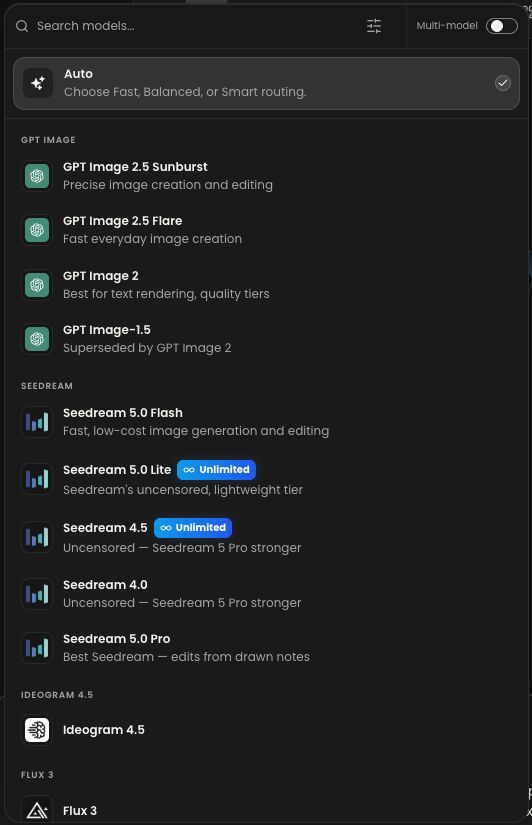 Open full-size ↗
Check the result before making more. Can you understand the offer at a glance? Is the product accurate? Are spelling, prices and any claims correct? A polished image can still contain the wrong information.
To improve it, bring the result back into Kobi’s chat and ask for one specific change:
Keep the overall direction of this ad and change only this: [describe the change]. Preserve the other details and the character’s identity, if present. Keep all visible ad copy in English.
Use the revised prompt in the image tool, check the cost again, and generate another version. Changing one thing at a time makes it easier to see what actually helped.
Keep this version when…
- The product or service is recognizable.
- The offer and spelling are correct.
- The main message is readable at the size people will see it.
- You have downloaded the image you want to use.
Make the image fit where you will publish it
Choose the format before generating: 1:1 for a square post, 9:16 for a vertical story, or 16:9 for a wide website visual. These are width-to-height ratios, not quality settings.
Do not simply stretch one image into all three shapes. Ask Kobi to adapt the composition to the new format, leaving the product and message easy to see. Keep important text and faces away from the edges. If you plan to animate the image, start with the ratio you want for the final video.
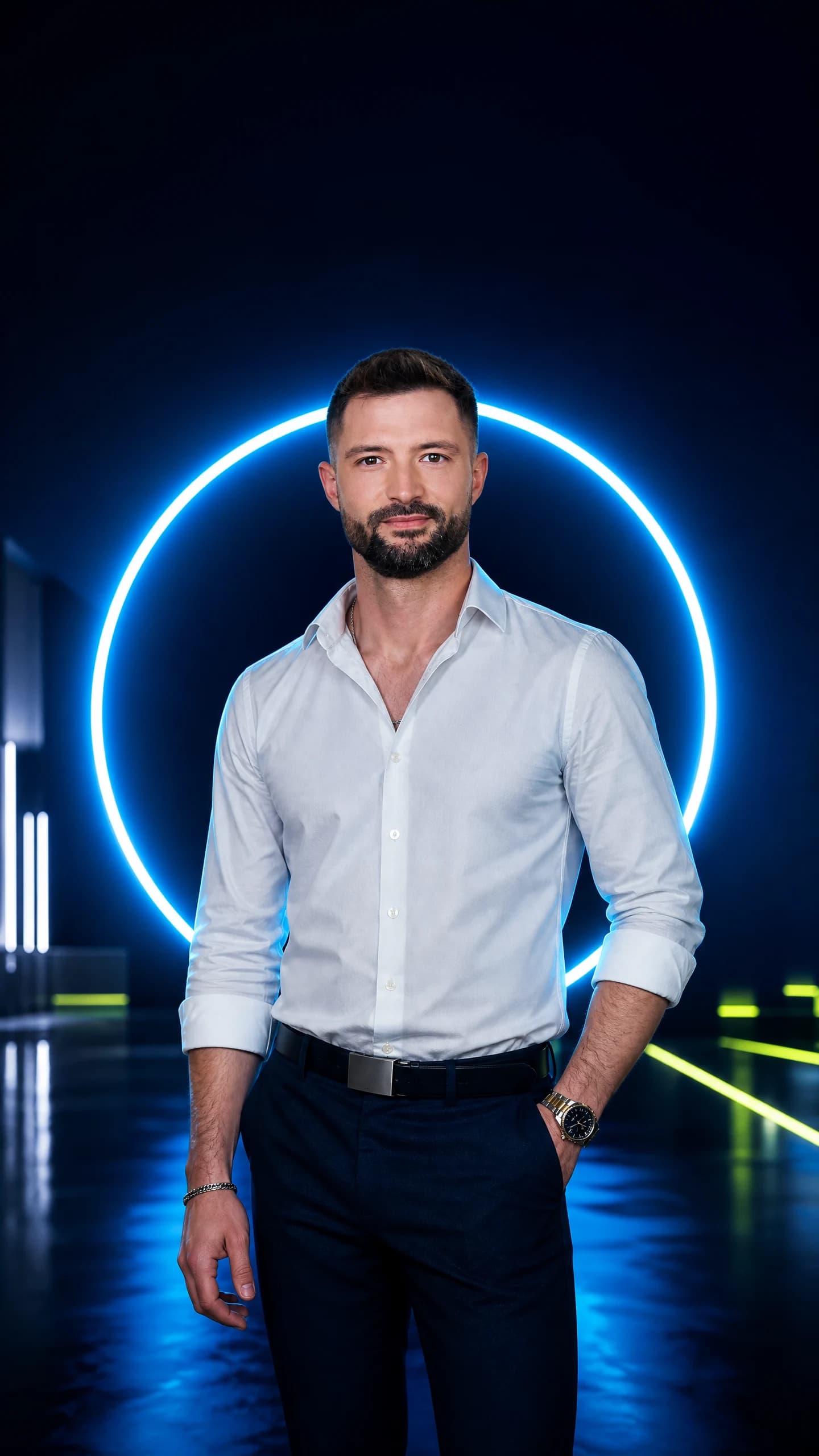

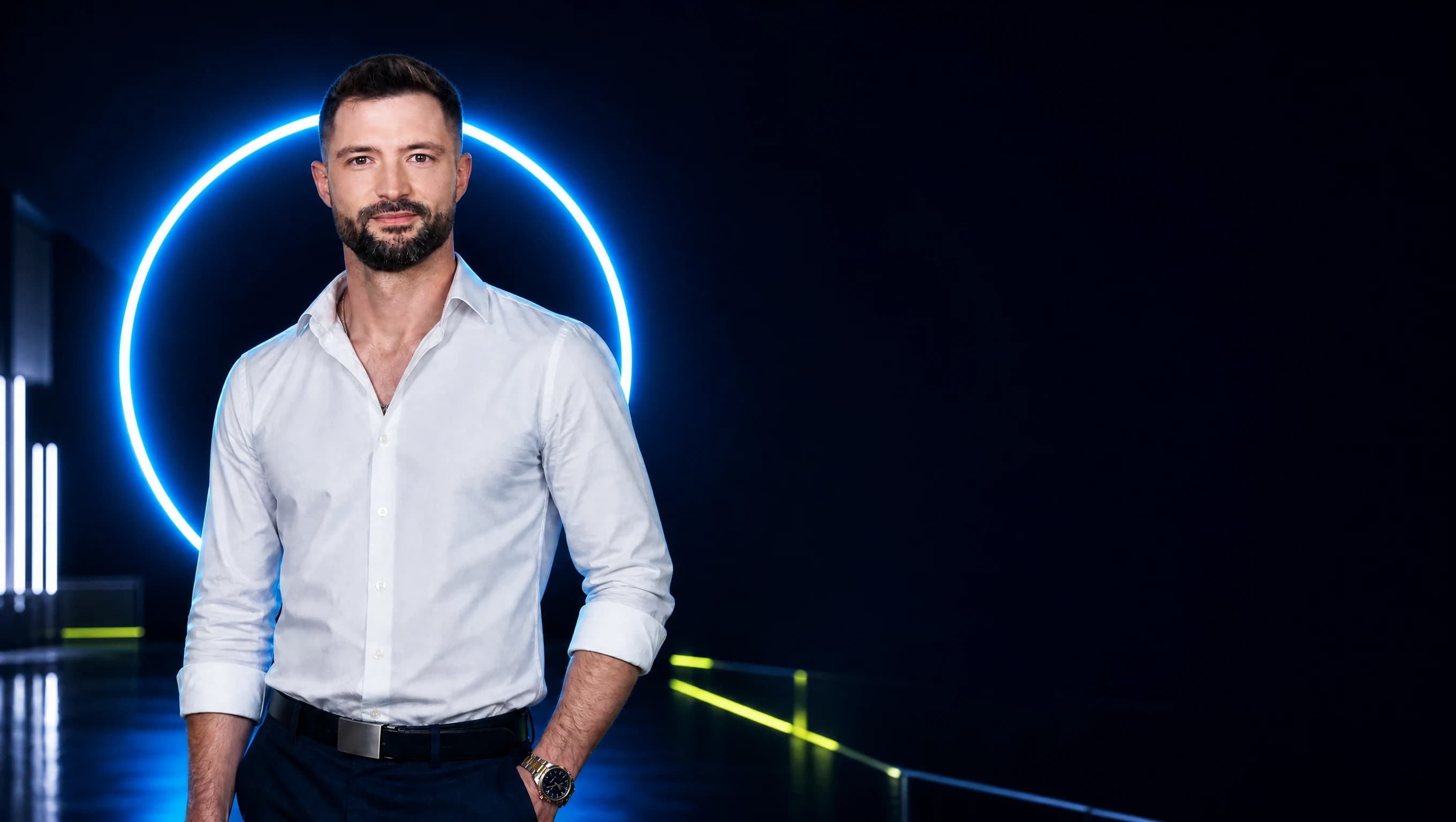
From our own project: these three Kolbo visuals use the same subject and blue studio direction, with different compositions. They are not one image stretched three ways. Notice how the space for a headline moves. You can apply the same principle to a product, an event or a service.
Use the attached image as the visual reference. Adapt this concept to [1:1 / 9:16 / 16:9]. Preserve the subject, palette and lighting. Recompose rather than stretching or cutting off the subject. Leave clear space for a headline. No text or logos.
Reuse products, characters and styles with Visual DNA
Visual DNA gives Kolbo a reusable reference for a product, character or visual style. For example, bring the same coffee bag into several campaign scenes, reuse a presenter, or keep a consistent art direction across a series. It helps maintain continuity; inspect every result for unwanted changes.
For video, first create and approve the still image, then use it as the starting frame in the next step. This gives the video model a concrete visual reference for your product or scene.
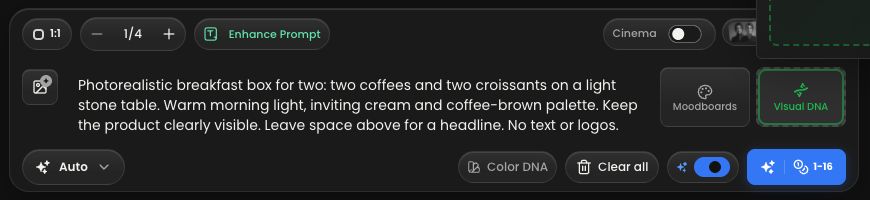
- Open Visual DNA in the image tool and choose the option to create a new DNA.
- Add clear reference photos. The form accepts one to four photos. For a product or person, use clear views of the same subject, with the most representative photo first. For style, choose references that clearly show the look you want.
- Give it a short, easy-to-type name, such as CoffeeBag or Alex. Choose the appropriate type, or check what Auto identifies.
- Select Create DNA. You now have a reference you can reuse.
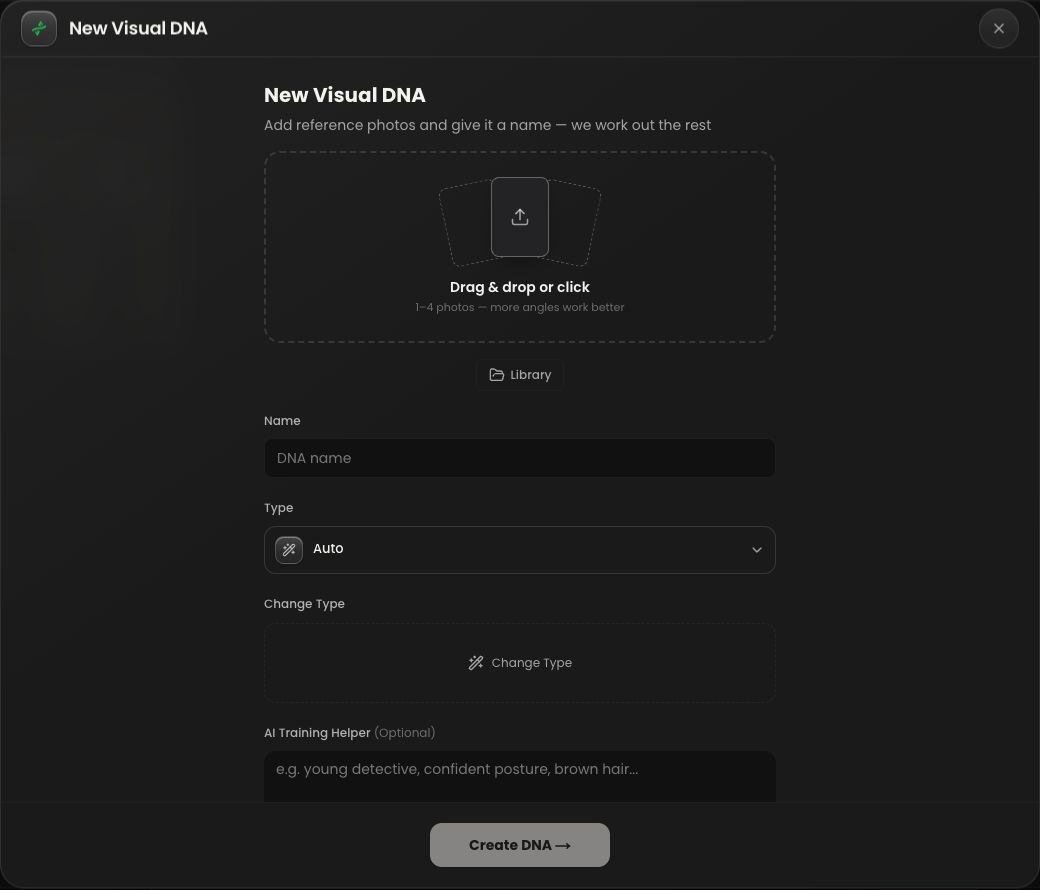 Open full-size ↗
To actually use it, type @ in the prompt and select your saved reference from the list. You can also select it using the Visual DNA control. Check that the reference is attached before generating. Merely writing “CoffeeBag” or “Alex” in a sentence does not attach it.
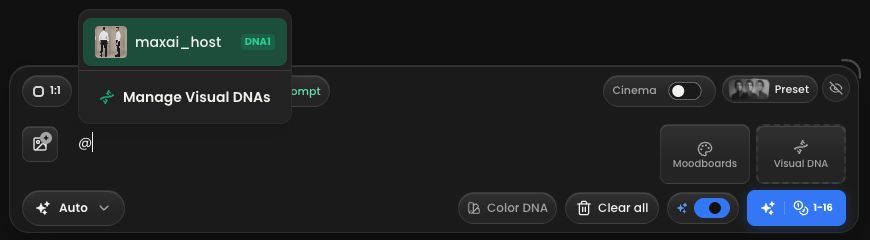 Open full-size ↗
After attaching your reference, describe the new scene. For a product, try:
Create a photorealistic campaign image using the selected product reference. Place the product on a light stone counter in warm morning light. Preserve its shape, packaging proportions, colors and label design. Leave space on the left for a headline. No people, no added text or invented features.
Check the packaging and every word on the label against the original before publishing. For an exact label, you may need to place the original product photo into the final design.
For a recurring presenter, try:
Place the selected character in a bright neighborhood café, sitting beside a glass of iced latte. Keep the face recognizable. Warm natural window light, inviting and realistic. Leave clear space in the upper part of the image for a headline. No text or logos.
Generate one scene, inspect the face, then try a second setting. Visual DNA helps with consistency; it does not guarantee an identical face in every output. If the face drifts, check the attached reference, simplify the scene and try a clearer reference photo.
For a consistent series: keep the same reference, lighting, palette and overall style. Change the scene or message deliberately. If you use several characters, make each person’s role clear and inspect the result for mixed identities before using it.
4. Turn your image into a short video
Start with an image you already like. Open the video tool, choose Frames, and select your image as the starting frame. The model will use it as the visual starting point for the motion.
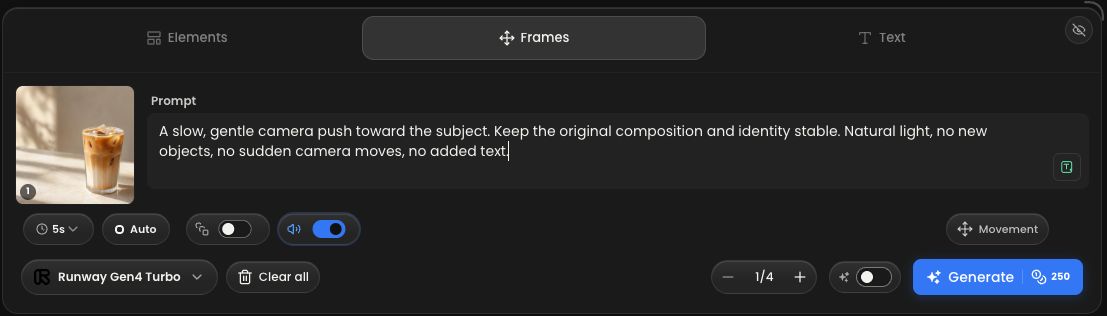 Open full-size ↗
For the first attempt, use a short duration and a lower-cost model available in your account. You are testing whether the motion works, so check that before paying for higher resolution or a longer clip.
Ask for a simple movement. For the café example:
A slow, gentle camera push toward the iced latte. Keep the glass, ice cubes and drink stable and recognizable on the counter. Soft natural morning light. No new objects, no sudden camera moves, no added text.
Kolbo also offers an automatic-prompt control beside the prompt box. If you use it, read the result before generating and remove movements you do not want.
Watch the entire result. Look for distorted hands, changing faces, warped packaging or moving text. If something breaks, try less movement and a shorter clip. Download the version you want to keep.
Need sound? Check whether your chosen model and settings include audio. A video generation is not a promise of speech, music or sound effects. For this first exercise, get the visual right before adding audio.
You have completed the workflow when…
- You have one image ad you would actually use.
- You know how to attach a product, character or style reference.
- You have a short clip with usable motion.
- You have checked the final files, not just their thumbnails.
Understand credits before choosing a plan
The number of credits a platform gives you is only half the story. What matters is how many usable outputs those credits buy with your model and settings. A still image and a long, high-resolution video can have very different costs.
Kolbo and platforms such as Higgsfield bring multiple models into one interface. Compare the same model, duration, resolution and audio settings where possible. Then include the retries you usually need to get a usable result. A larger credit allowance alone does not prove that one service is cheaper.
A simple calculation: if a hypothetical plan costs $30 for 3,000 credits, and a generation uses 30 credits, that attempt costs about $0.30 when you use the full allowance. If you need three attempts, budget about $0.90 for a usable result. Unused credits, taxes and plan terms can change the effective cost. These numbers illustrate the method; they are not a Kolbo price quote.
Check Kolbo’s current plans before buying. Start with a small test, then choose a plan based on what you actually create.
Common questions and quick fixes
Do I need a separate subscription to each model?
You use the models available through your Kolbo account inside Kolbo. That does not give you a separate subscription to each model provider’s own app. Check the model list, features and limits for the plan you are considering.
Kobi wrote a prompt, but no image appeared. What now?
Copy Kobi’s prompt into the image tool’s main input, check the settings and cost, then generate. Getting a prompt from the assistant and generating an image are separate steps in this workflow.
Why did it generate a different person?
First check that you selected the saved character using @ or the Visual DNA control. Typing the name alone is not enough. If it is attached, try a clearer reference and a simpler scene.
The text in my ad is wrong. How do I fix it?
Keep the headline short and specify the exact wording in quotation marks. Check every letter before publishing. For complete control, generate without lettering and add the final copy in your editor. Do not use a beautiful visual with an incorrect offer.
Why did the cost change?
You may have changed the model, resolution, duration, quality or number of outputs. Read the Generate button again after changing a setting. Previous examples and screenshots are not a price guarantee.
Can I follow this without appearing in the ad?
Yes. Create a product visual, service ad or atmosphere shot. Use Visual DNA for your product or style if helpful, or skip it. Then animate the approved image. You never need to appear in the content.
Your next campaign, on one page
Save this brief and reuse it for a product launch, service promotion or event. Fill in the brackets before asking Kobi for prompts.
CAMPAIGN BRIEF Product or service: [what I offer] Audience: [who it is for] One message: [what they should remember] Reference: [product photo, saved DNA or style reference] Keep consistent: [product details, colors, lighting] Image format: [1:1, 9:16 or 16:9] Video movement: [one simple action] Audio: [none, ambience, music or voice] Before publishing: verify product details, spelling, offer and final output. Help me turn this brief into one image prompt first. Wait for my feedback before planning the video.
What makes it yours
Product shape, packaging, identity, colors and light. Save a reference you can reuse.
What makes it fresh
Scene, framing, format and message. Change one at a time so you can judge the result.
A useful first milestone: one approved image, a second format and a short clip. Review them together before creating a larger batch. This is a practice target, not a guarantee that every generation will work.
Already use Claude or Codex? Connect Kolbo to your agent
MCP is a connection that lets an AI assistant use another service’s tools. With Kolbo connected, you can keep your brief in the conversation and ask your agent to create images, videos or audio through your Kolbo account.
- Codex: find Kolbo.AI in the Plugins store, connect it and authorize your Kolbo account.
- Claude Code: add Kolbo’s remote MCP server using the command below. Then run
/mcpin Claude Code and complete authentication.
claude mcp add --transport http kolbo https://api.kolbo.ai/mcp
Try a small task: “Use Kolbo to create one product image from this reference. First show me the proposed model, format and credit cost, and wait for approval before generating.”
The connection uses your Kolbo account and generation credits. It does not make generation free. You can follow this entire guide in Kolbo’s website without connecting an agent. See Kolbo’s setup documentation and Claude Code’s MCP instructions for current setup options.
Start with one useful result
Pick one real offer. Create its first image, improve one detail, and only then try another format or animate it. That gives you something you can use and a workflow you can repeat.
Open Kolbo and make your first adThis guide adapts our practical MAX AI workshop into a written English walkthrough. Product overview checked against Kolbo’s official website on October 3, 2026. English interface screenshots were captured on October 3, 2026. Campaign examples are from our MAX AI Kolbo project.